Looking for a budget-friendly way to use Claude Code? What if I told you that you could get started for just $3 for your first month?
While Anthropic's Claude API is powerful, the costs can add up—especially for hobbyists, indie developers, or anyone running lots of coding sessions. Enter GLM models through the z.ai API, a clever workaround that lets you use Claude Code with a different (and much cheaper) backend.
In this guide, I'll walk you through exactly how to set up Claude Code to use GLM models instead of Anthropic's native Claude models. Let's dive in!
What You'll Need
Before we get started, make sure you have:
- A computer with Node.js installed
- Basic familiarity with the terminal/command line
- About 10-15 minutes to set everything up
Step 1: Subscribe to z.ai Lite Plan
First things first—head over to z.ai and sign up for their lite plan. The best part? Your first month is only $3.
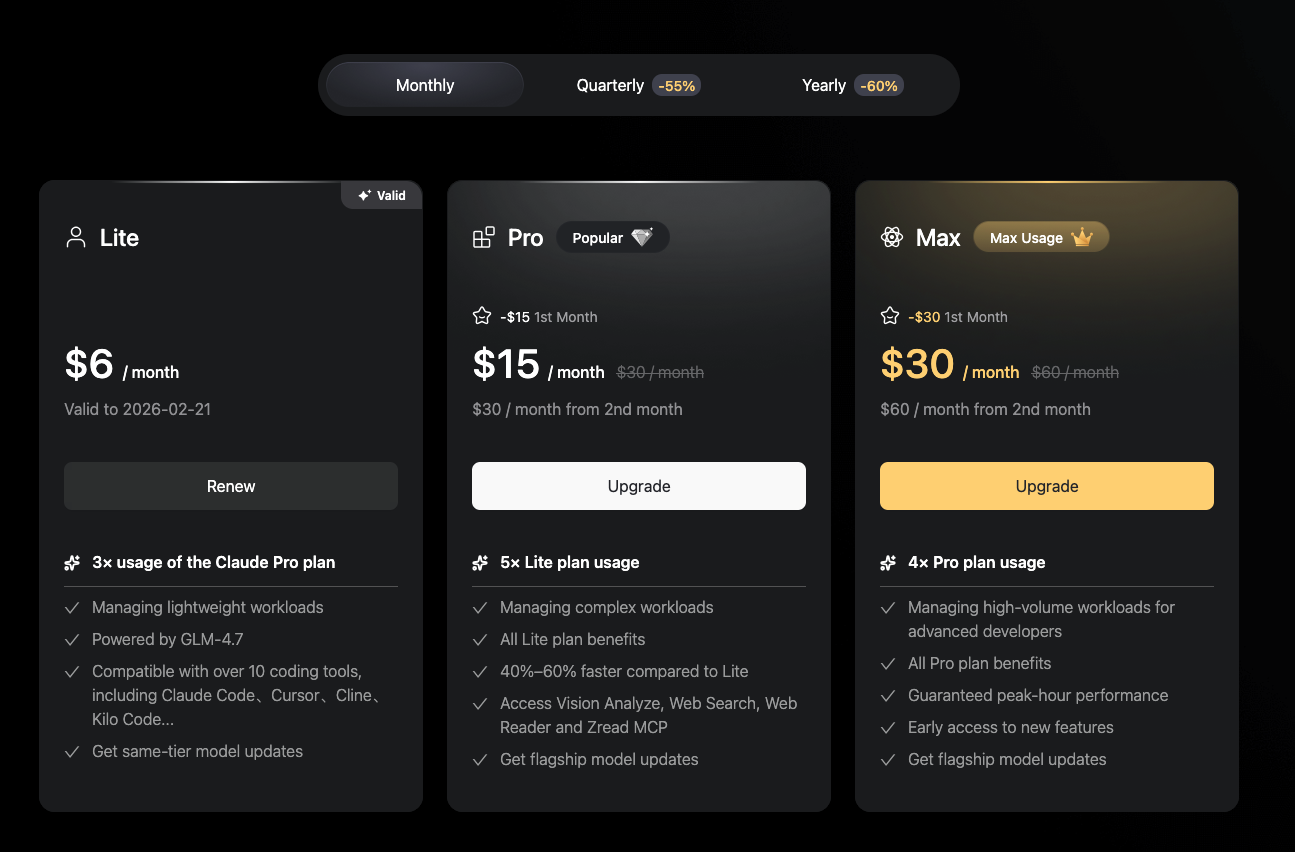
Once you've subscribed, you'll have access to their API at a fraction of the cost of Anthropic's pricing.
Step 2: Create Your API Key
Now you need to generate an API key so that Claude Code can talk to the z.ai API.
- Log in to your z.ai account
- Navigate to the API section
- Generate a new API key
- Important: Copy this key somewhere safe—you'll need it soon!

Step 3: Install Claude Code
If you haven't already installed Claude Code, now's the time. Open your terminal and run:
# Install Claude Code globally
npm install -g @anthropic-ai/claude-code

# Navigate to your project directory
cd your-awesome-project

# Start Claude Code
claude
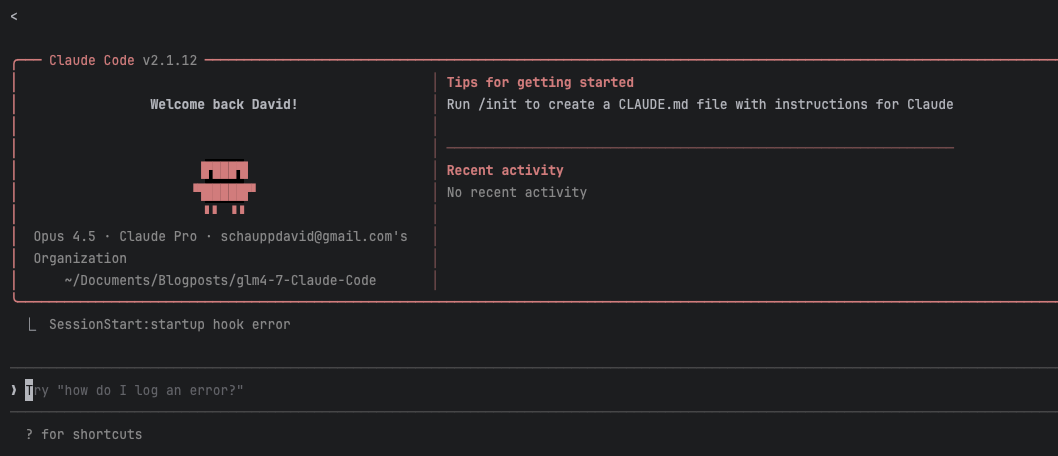
The first time you run claude, it will walk you through the initial setup.
Step 4: Run the z.ai Coding Helper
Here's where the magic happens. We'll use a helper tool from z.ai to configure Claude Code to use their GLM models instead of Anthropic's.
In your terminal, run:
npx @z_ai/coding-helper
The helper will ask you a few questions:
- Language selection – Choose English (or Chinese, if you prefer)
- Plan selection – Select "GLM Coding Plan Global"
- API key – Paste the API key you created in Step 2 (the helper will validate it)
- Coding tool – Select Claude Code as the tool you want to configure
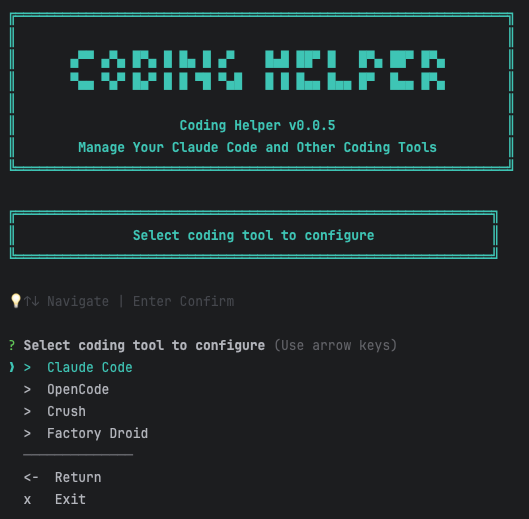
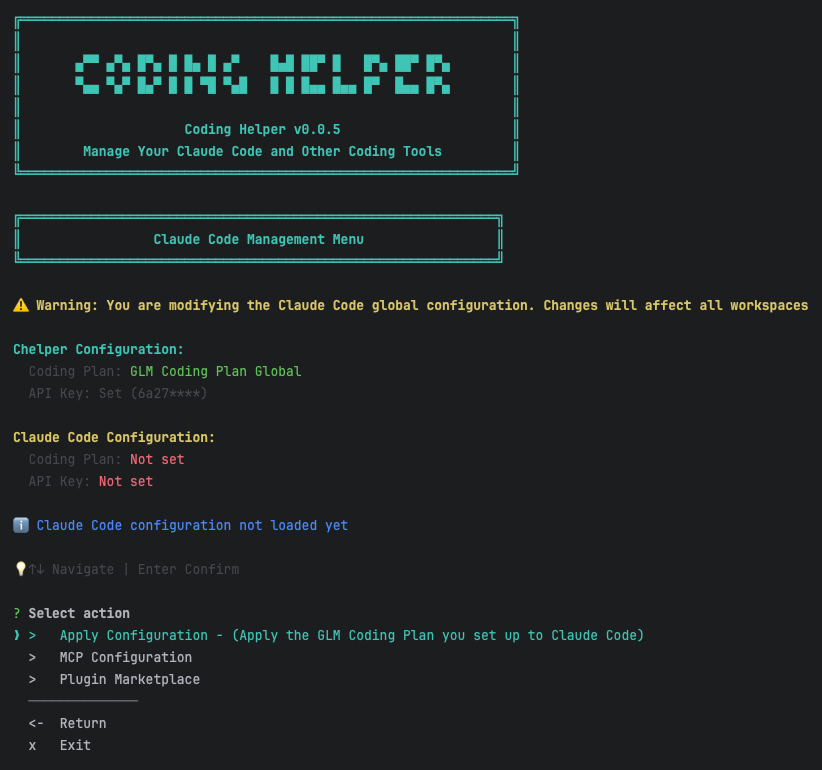
Once you've made your selections, apply the configuration.
Step 5: Refresh Your Configuration
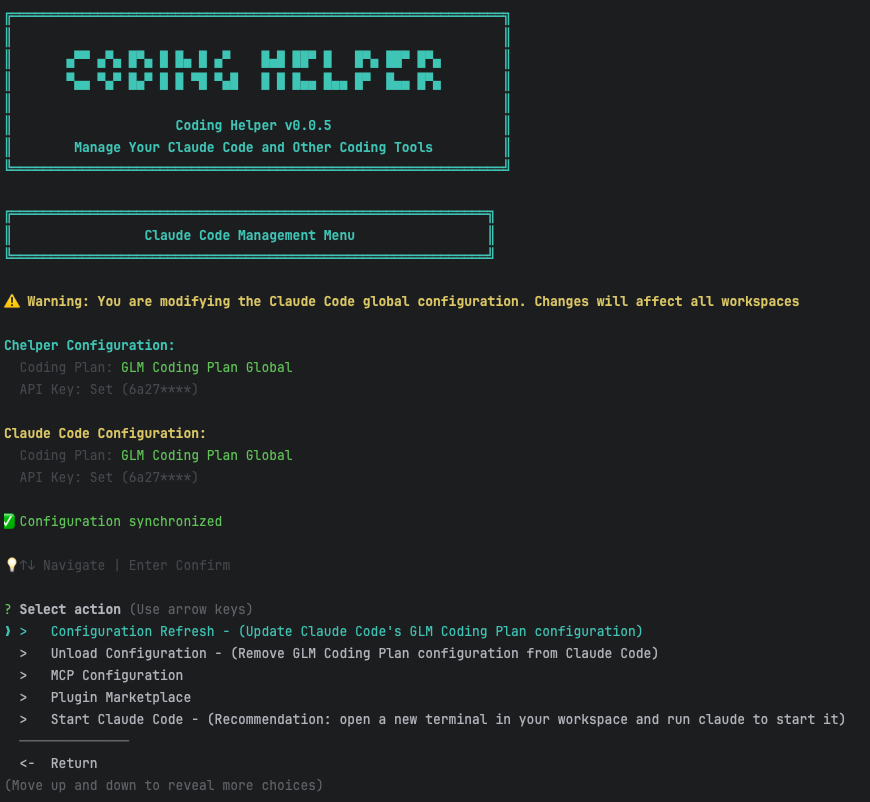
After applying the configuration, you should see an option to refresh your Claude Code configuration. Go ahead and click that button—it updates Claude Code's GLM Coding Plan configuration so everything stays in sync.
Step 6: Verify It's Working
Now for the moment of truth! Open a new terminal window and start Claude Code:
claude
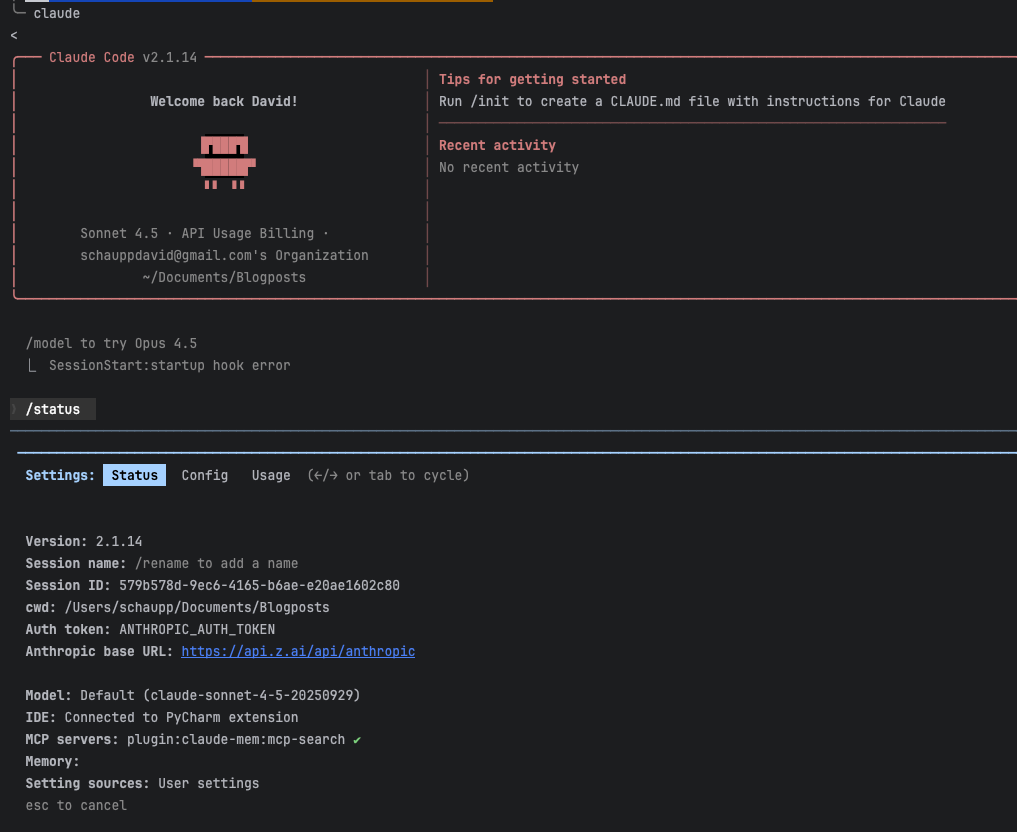
Once it's running, type /status to see your current configuration. If everything is set up correctly, you should see that the Anthropic base URL has changed to point to the z.ai API:
Step 7: Configure Your GLM Models
By default, Claude Code might still be set to use claude-sonnet-4.5 as the model. Let's fix that by telling it to use GLM models instead.
Open your settings file:
sudo nano ~/.claude/settings.json
Add (or update) the following environment variables:
{
  "env": {
    "ANTHROPIC_DEFAULT_HAIKU_MODEL": "glm-4.5-air",
    "ANTHROPIC_DEFAULT_SONNET_MODEL": "glm-4.7",
    "ANTHROPIC_DEFAULT_OPUS_MODEL": "glm-4.7"
  }
}
Your full settings file should look something like this:
{
  "alwaysThinkingEnabled": true,
  "enabledPlugins": {
    "claude-mem@thedotmack": true
  },
  "env": {
    "ANTHROPIC_AUTH_TOKEN": "your-api-key-here",
    "ANTHROPIC_BASE_URL": "https://api.z.ai/api/anthropic",
    "API_TIMEOUT_MS": "3000000",
    "CLAUDE_CODE_DISABLE_NONESSENTIAL_TRAFFIC": 1,
    "ANTHROPIC_DEFAULT_HAIKU_MODEL": "glm-4.5-air",
    "ANTHROPIC_DEFAULT_SONNET_MODEL": "glm-4.7",
    "ANTHROPIC_DEFAULT_OPUS_MODEL": "glm-4.7"
  }
}
Press Ctrl+O to save and Ctrl+X to exit the editor.
Note: The
claude-mem@thedotmackplugin shown above is an optional memory plugin that helps Claude remember context across sessions. You can learn more about it here.
Final Verification
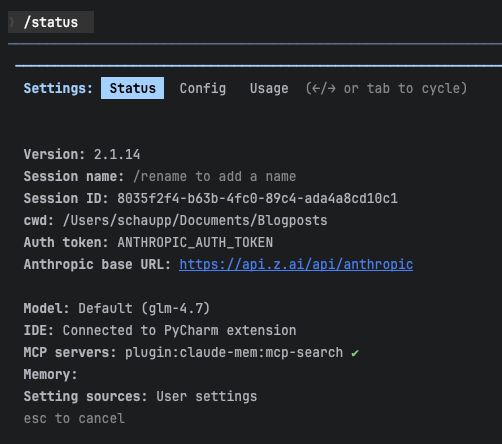
Quit and restart Claude Code one more time. When you run /status again, you should now see your GLM models being used:
Bonus: The Memory Plugin
If you want Claude Code to remember things across sessions (super handy for ongoing projects), check out the claude-mem plugin by thedotmack. It gives Claude a persistent memory so it can recall previous conversations and context.
Troubleshooting
Issue: Usage is still showing Claude instead of GLM
If Claude Code is still using Anthropic's Claude models instead of GLM, try logging out and restarting:
- Run the
logoutcommand inside Claude Code - Exit Claude Code completely
- Reopen Claude Code
- Verify the model with
/status
This should force Claude Code to reload your configuration and use the GLM models.
Conclusion
And there you have it! You're now running Claude Code with GLM models through the z.ai API, all for just $3 for your first month.
This setup gives you the power of Claude Code's interface with the cost savings of GLM models—perfect for personal projects, learning, or any situation where you want to keep your AI coding costs down.
Happy coding, and enjoy the savings!
Questions? Found a better way to do this? Drop me a line—I'd love to hear how you're using GLM with Claude Code!